
Set Up Your ClassVR Headset
Step 1 – Log in to the ClassVR Portal
.png)
- To register for an account follow the link in your email
- You can either choose ‘Register New User’ > Enter your email address and choose a password.
- Or choose one of the SSO options. (Microsoft, Google or ClassLink)
- After accepting the EULA you should see the main ClassVR homepage
- To invite your colleagues to the ClassVR Portal, go to Settings -> Invite User, enter their email address, and assign a role. (This is only possible with Admin permissions, find out more here.)
Tip: Bookmark the ClassVR Portal for easy access in future.
Here is a video to guide you through the process:
Step 2 – Connect your Headsets to Wi-Fi
- Log into portal.classvr.com with your registered email address.
- In the top-right corner, click Settings. Under the Network section, click Connect Device.
- Enter your Wi-Fi SSID (network name) and password and a QR code will generate.
- Click on QR code to enlarge -> Right click to save and keep it handy for future use.
- Turn on your ClassVR headset, open the Scanner Utility app within the headset, and scan the QR code to connect your headsets to Wi-Fi.
- For network-specific details, view the ClassVR Connectivity Guide or the Eduverse Status Page
Step 3 – Enroll Your Headset
- Enrolling links each headset to your organisation’s ClassVR portal, allowing you to manage content and settings remotely.
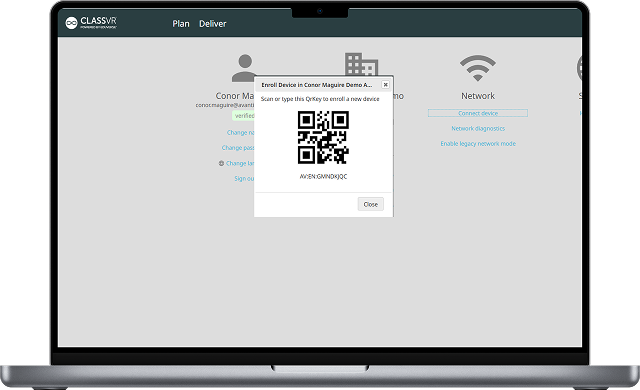
- In the ClassVR Portal, open Settings in the top-right corner, and click Enroll Device to generate a QR code.
- Turn on each headset, open the Scanner Utility app, and scan the QR code.
- Once scanned, the headset will appear in your device list and will be ready to use.
Step 4 – Helpful Resources
Now that your headsets are ready to go, here are some helpful places to visit as you start exploring content and preparing resources for your lessons:
- Training Hub – Watch helpful videos on how to use the ClassVR Portal, including how to create playlists, send them to headsets, and manage lessons step by step. Visit: training.classvr.com.
- 50 Ways to Use ClassVR – Download 50 Ways to Use ClassVR guide for inspiration on how other teachers are VR in their lessons. Visit: classvr.com/resource-hub/downloads/
- Technical Support – For technical support, including user guides, FAQs, and troubleshooting help, visit support.classvr.com.