

Using Paint 3D on Windows, teachers can create immersive images and 3D models for ClassVR. Pick a shape from the 3D shapes tab, choose a colour and drag it onto the canvas. Save it as a .GLB file, upload it to the ClassVR Portal and send it to headsets.

If you have recently purchased your ClassVR headsets, or even if you are a long-time user, it almost goes without saying that one of the most important things for you and your school will be creating your own content. Luckily for you, if you are a Windows 10 user, creating your own 3D models to use in augmented reality is now super-simple thanks to Paint 3D
Arriving alongside the Windows Creators Update, Paint 3D has flown under the radar of many users. However, its ability to create 3D models is (in my humble opinion) unparalleled in simplicity and effectiveness. Let’s look at some of its three best features:
Chris Bass
Avantis Educational Specialist (UK)
Create Simple 3D Shapes In Seconds

Click the ‘3D shapes’ tab at the top of the page, select a template from the right-hand panel, pick a color and drag the shape onto the canvas. Studying 3D shape? Boom, there’s a resource that your students can use in their ClassVR headsets.
What Are the Benefits of Using Paint 3D?
Easily Export And Upload Files
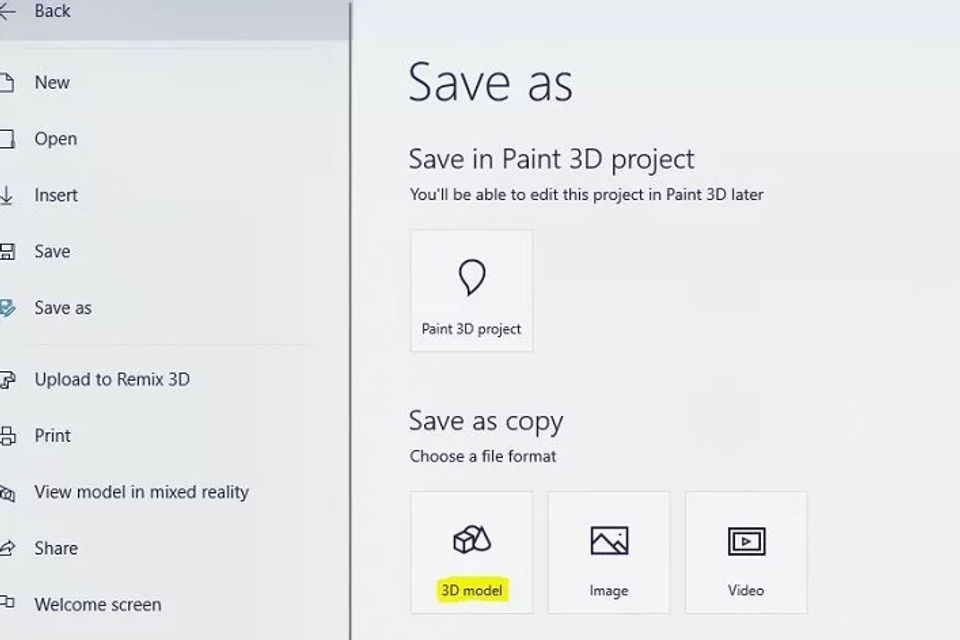
To view AR models through the ClassVR headsets it is important that they are saved in the .GLB file format. While 3D models downloaded from the internet can be converted into this format using online conversion software, models created using Paint 3D can be exported directly as .GLB files. This means that getting your new creations into your headsets is as simple as clicking the ‘Save As 3D Model’ button in the ‘File’ menu. This will then give you a .GLB file that can be uploaded straight into your ClassVR Portal to be used in playlists and pushed to headsets.

Create Anything From Simple Shapes To Complex Models
The real beauty of Paint 3D is that it can be as simple or as complex as you require. If you need to create some simple 3D shapes to use in a math’s lesson, great! Need a more complex model for Science lessons? No worries. With a little practice it is easy to start building more complex models that will add serious depth to lessons with older students. A great example of this is using the tools in the program to create models of complex molecules in chemistry lessons. Interacting with the subject in this way gives students a deeper, richer understanding of the topic and will make it easier to visualize the structure of the material you are studying.
If you or your students are already using Paint 3D in the classroom, we would love to hear from you. Share your success stories with us on Twitter with #ClassVR and tag @ClassVR and on Facebook, with #ClassVR and don’t forget to tag us @ClassVR
Frequently Asked Questions
What is Paint 3D?
Paint 3D is a free Microsoft app for Windows that lets you create 3D shapes and models without any specialist design skills. Teachers can use it to build their own immersive content for ClassVR headsets, from simple maths shapes to detailed science models.
How do I create a 3D shape in Paint 3D?
Open the 3D shapes tab and choose a template from the right-hand panel. Select a colour, then click and drag on the canvas to place your shape. It takes seconds, which makes it ideal for lessons on 3D shapes.
What file format does ClassVR need for 3D models?
ClassVR AR models must be in .GLB format. Models downloaded from the internet often need converting, but Paint 3D exports .GLB files directly. Go to File, then Save As, and choose 3D Model.
How do I get my Paint 3D model onto ClassVR headsets?
Export your model as a .GLB file and upload it to the ClassVR Portal. From there, you can add it to a playlist and send it straight to your students’ headsets.
Why should students create their own 3D models?
Building a model helps students understand a topic more deeply, because they have to think about how it is structured. A chemistry molecule is a good example. Paint 3D suits both quick classroom resources and more advanced projects for older students.
Can I still download Paint 3D?
No. Microsoft removed Paint 3D from the Microsoft Store in November 2024. If it’s already installed on your computer, it still works and can export .GLB files for ClassVR. If not, try a free alternative such as Blender, which can also export .GLB models for the ClassVR Portal.